Changes
Page history
Importing
authored
Sep 27, 2023
by
Ticxo
Hide whitespace changes
Inline
Side-by-side
Modeling/Importing-a-Model.md
View page @
06820c5a
Plop the
`bbmodel`
file into the
`blueprints`
folder, and run
`/meg reload models`
. Model Engine will then generate a new resource pack.
## Importing
Yep, that's it.
After modeling and animating your model, all there is left is to import it into the game!
\ No newline at end of file
First, make sure to save your model as
`.bbmodel`
. All your model, textures and animations are contained within this
file, so there is no need to save them individually. You can then move the file in the blueprints folder generated
under Model Engine's plugin folder (
`plugins/ModelEngine/blueprints`
). You are welcomed to organize the folder by
putting model files within sub-folders. Finally, start your server or run the reload command
`meg reload models`
.
Congratulations! The model is now in-game!
## Generating Resource Pack
Whenever you import a new model, Model Engine will automatically generate a resource pack that is ready to be used. To
use the resource pack, either download it from the server and apply it locally, or use an external service to host and
send the resource pack!
**Model Engine will not send the resource pack for you.**
## Results
> 
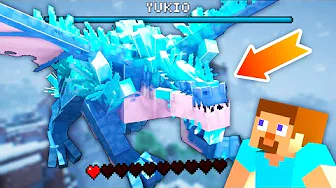
> Note: the animations shown here is controlled through MythicMobs.
With enough patience, you too can achieve something like this:
[
](https://youtu.be/TyxtEDoYud8)
\ No newline at end of file
